How to Upgrade OBDSTAR MS50 Firmware without Losing Data Backup
Matched product:

Anniv Promo EU-Schiff OBDSTAR MS50 Standard Motorcycle Diagnostic Scanner – Supports Moto Diagnosis, Odometer Recalibration & Tuning
Latest price:€578.00€482.0017% off
- Item No. SP365
- Free Shipping
Comprehensive Motorcycle Diagnostics – Supports fault diagnosis, odometer recalibration, and tuning for over 30 brands and thousands of models.
Advanced Functions – Includes fault code reading/clearing, data stream monitoring, action tests, settings, and coding.
User-Friendly Design – Portable tablet with a 5.0-inch capacitive touch screen and industrial-grade appearance for professional use.
High Performance Hardware – Powered by an RK3128 quad-core processor for fast and efficient operation.
Free Updates – Comes with 1 year of free software updates to keep diagnostics current.
Advanced Functions – Includes fault code reading/clearing, data stream monitoring, action tests, settings, and coding.
User-Friendly Design – Portable tablet with a 5.0-inch capacitive touch screen and industrial-grade appearance for professional use.
High Performance Hardware – Powered by an RK3128 quad-core processor for fast and efficient operation.
Free Updates – Comes with 1 year of free software updates to keep diagnostics current.
Learn how to safely upgrade your OBDSTAR MS50 firmware without losing data. Our step-by-step guide shows you the complete backup process and firmware update procedure to keep your device working perfectly.
Today we will learn how to upgrade the firmware of the device(Demostration with OBDSTAR MS50)Preparation:
MS50 Scanner
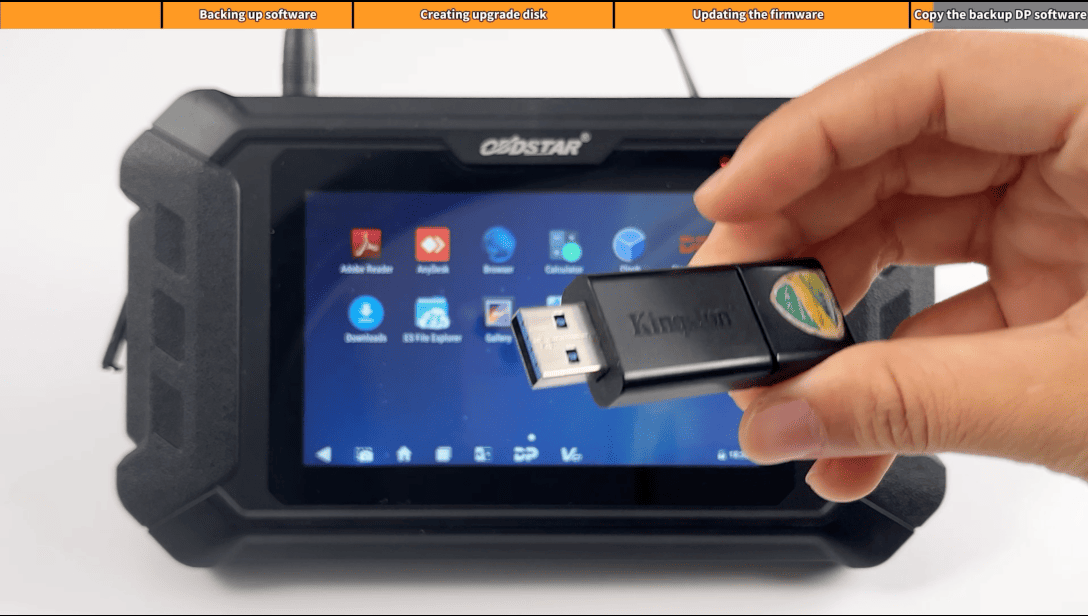
USB disk with a size of 16G or above (for data backup)
Card reader
TF memory card with a size of 1G or above(TF car can only be used for firmware upgrade)
12V 2A Charger
Steps:
Step1: Back up DP Software
We first use the USB disk to back up all the files in the device during the firmware upgrade process, all setting in the device
and all software and files in the DP will be cleared. Users who have expired can not upgrade the firmware through one-click upgrade, you also need ti back up the software in the device
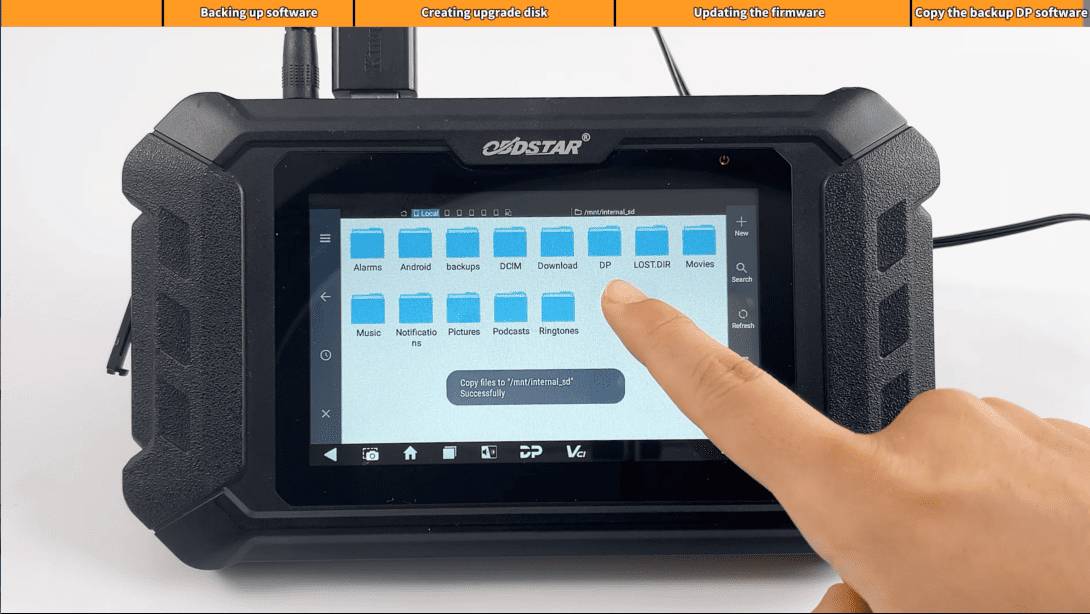
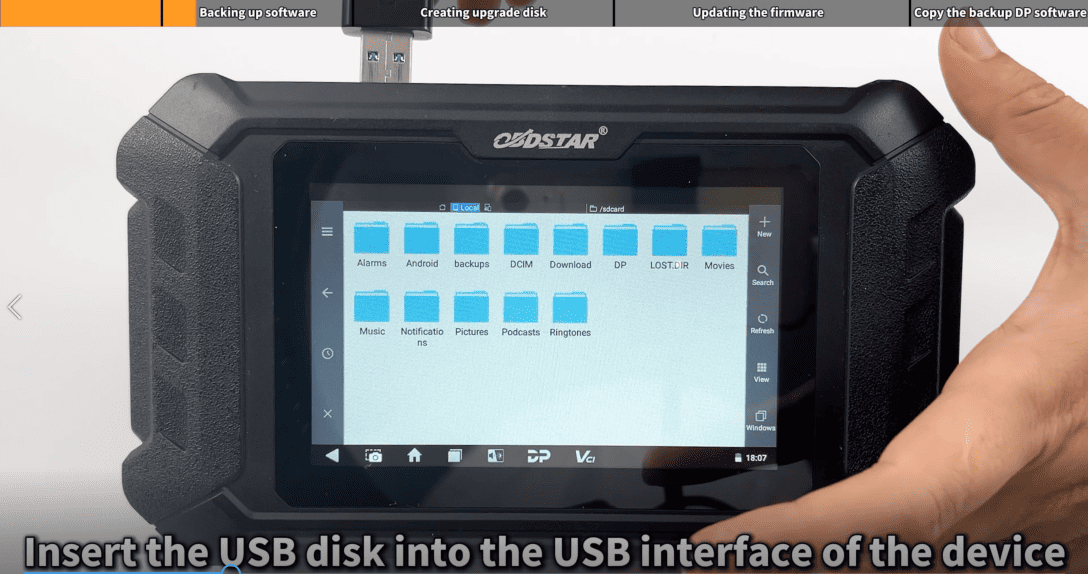
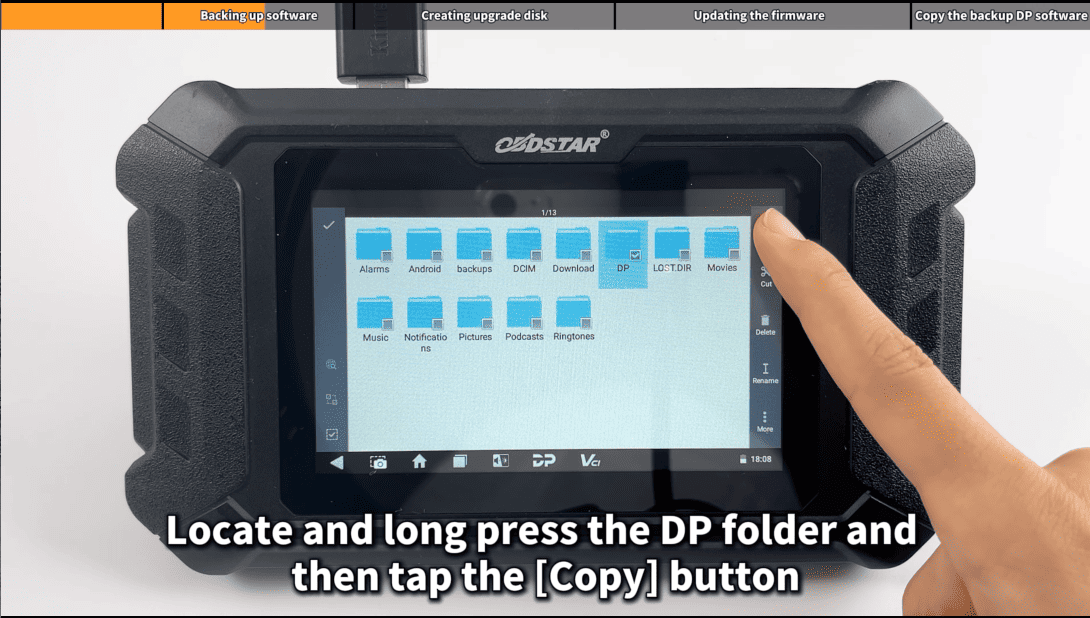
Enter the main menu and insert the USB disk, then locate and long press the DP folder and then tap the [Copy] button
Step2:Creating upgrade disk
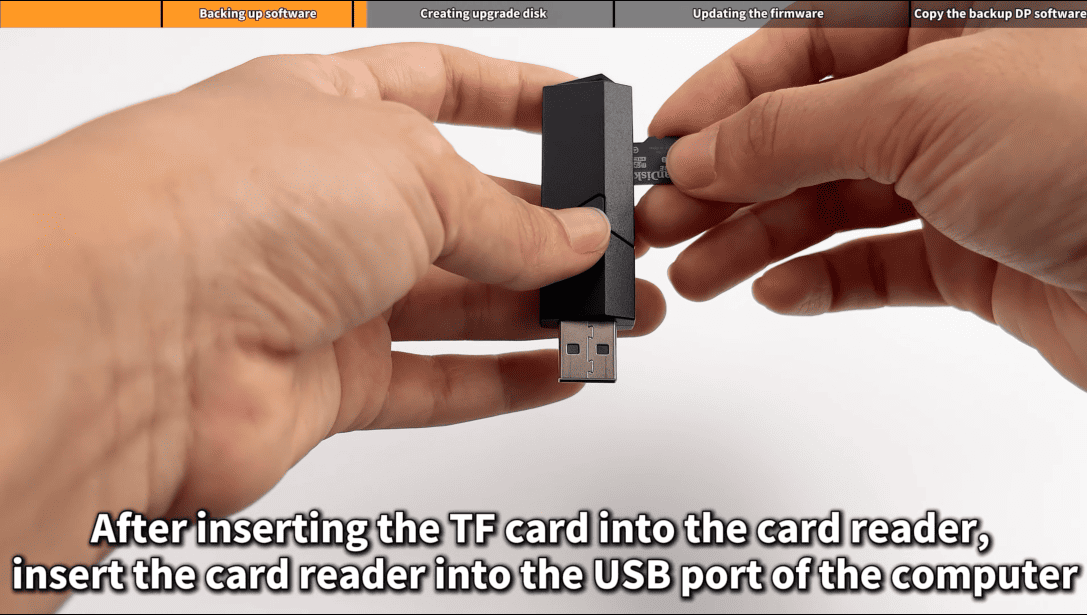
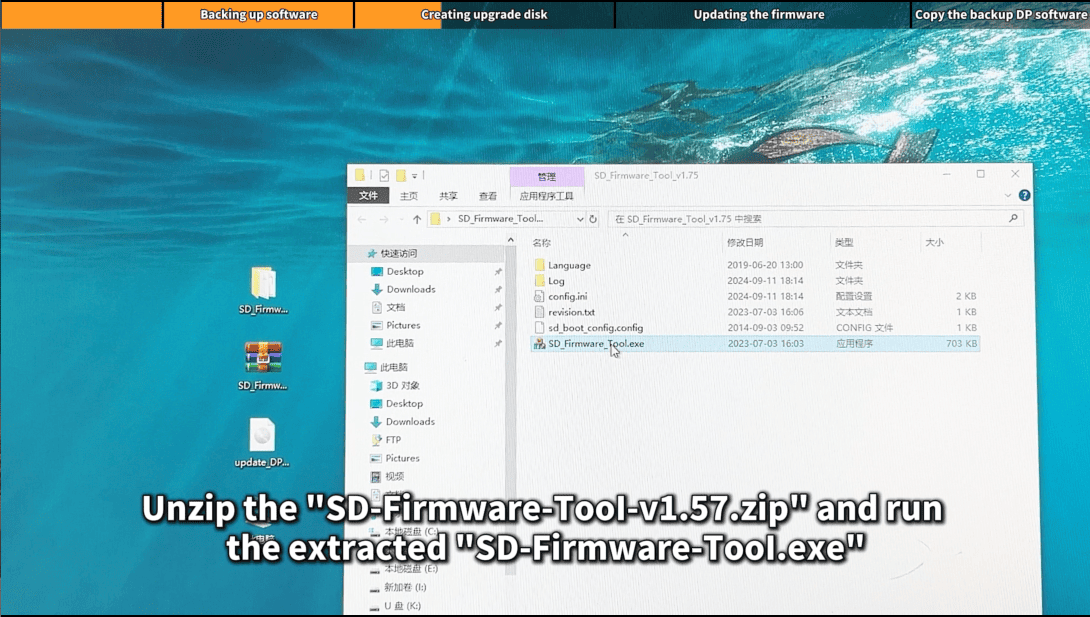
After inserting the TF car into the card reader, insert the card reader into the USB port of the computer, then unzip the "SD-Firmware-Tool-v1.57.zip" and run the extracted "SD-Firmware-Tool.exe"
Click the [Create] button to start writing the firmware file to the TF card
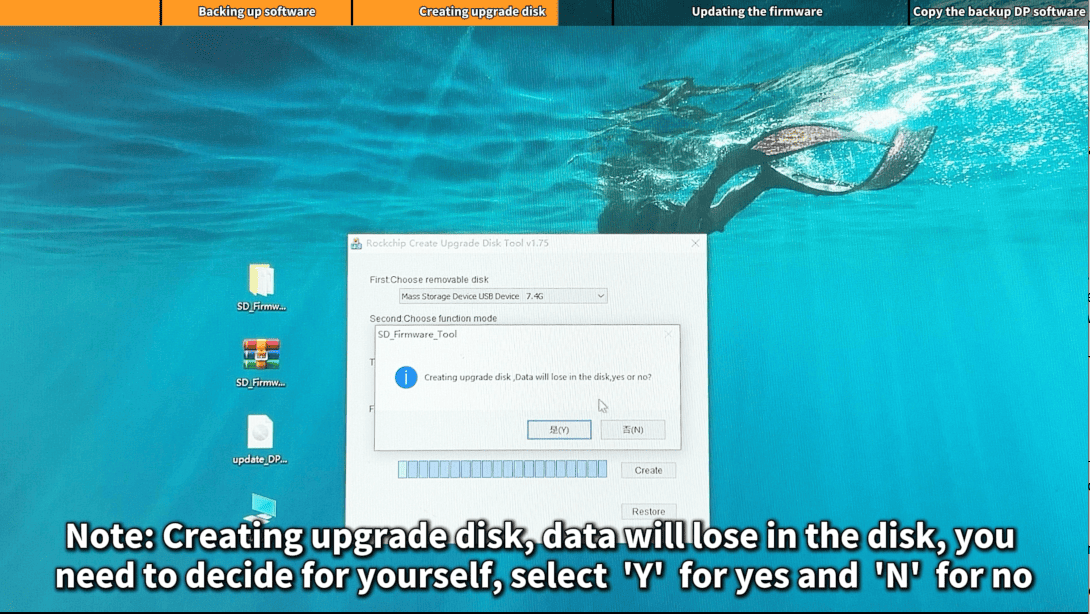
Note: Creating upgrade disk, data will lose in the disk, you need to decide for yourself, select 'Y' for yes, 'N' for no
Step3: Upgdating the firmware
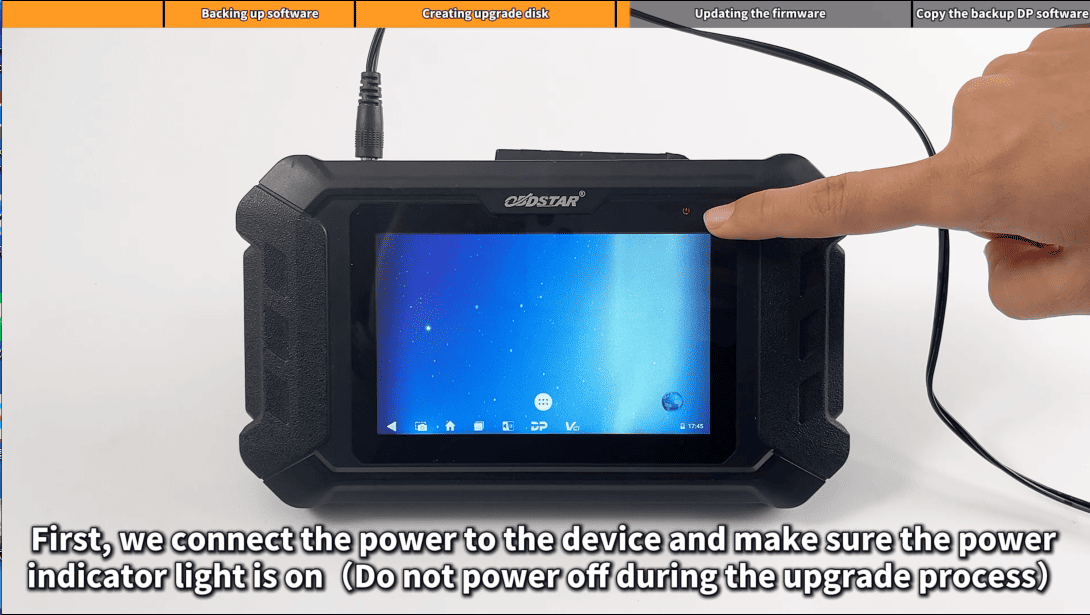
First, we connect the power to the device and make sure the power indicate light is on(Do not power off during the upfrade process)
1) Insert TF card into the device
2) Long press the device power button and select "Reboot"
3) When the screen displays "Doing Actions successed, please remove the sdcard", remove the TF card from the device. The device will automatically reboot and enter the system
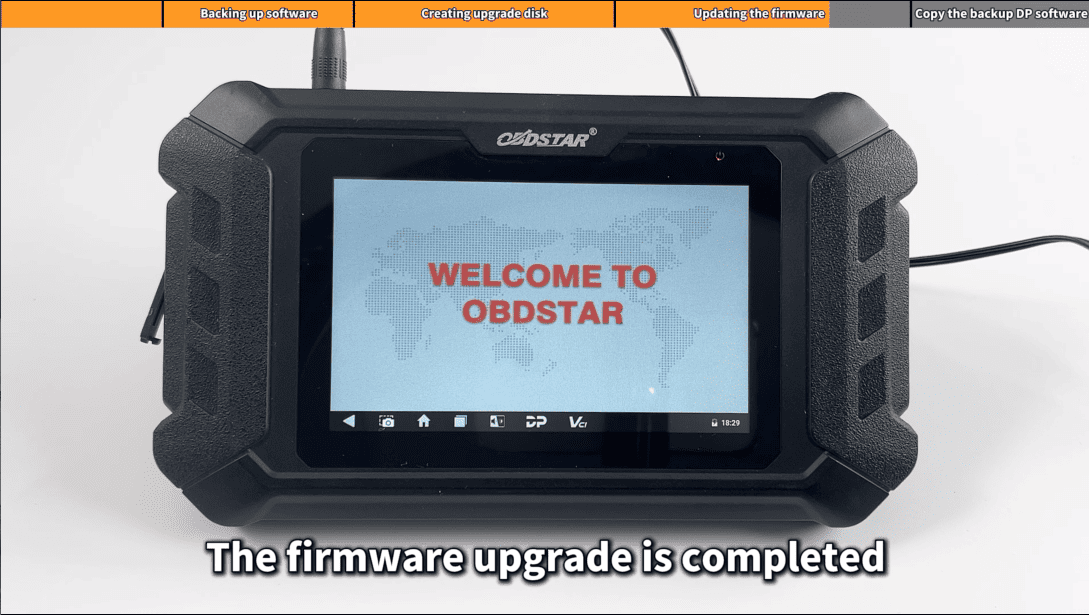
Note: Users whose membership has expired need to copy the original backup DP software, otherwise it will not work properly
Step4: Copy the backup DP software