
How to Export Data from OBDSTAR DC706
Matched product:

Anniv Promo EU-Schiff OBDSTAR DC706 DC 706 Full Version ECU/TCM/BCM Programmer for Cars & Motorcycles, Clone by OBD/Bench/Boot, Supports Checksum & I/O Terminal
Latest price:€1,329.00€1,107.0017% off
- Item No. SE169-G
- Free Shipping
Compatible with OBD, Bench, and Boot modes.
Complete functions for ECU cloning (Cars & Motorcycles), TCM cloning, and Body/Other module cloning.
Capable of reading ECU information, reading/writing EEPROM/DFlash/PFlash/MAP, ECU reset (Virgin), mileage calibration, IMMO pincode reading, ECU recovery, and more.
Includes checksum support.
Comes with one year of free software update.
Complete functions for ECU cloning (Cars & Motorcycles), TCM cloning, and Body/Other module cloning.
Capable of reading ECU information, reading/writing EEPROM/DFlash/PFlash/MAP, ECU reset (Virgin), mileage calibration, IMMO pincode reading, ECU recovery, and more.
Includes checksum support.
Comes with one year of free software update.
Exporting and backing up data from the OBDSTAR DC706 is simple and flexible. The device supports three convenient data export methods: USB disk, Type-C cable connection, and wireless transfer.
Exporting and backing up data from the DC706 ECU/TCM/BCM Programmer is simple and flexible. The device supports three convenient data export methods: USB disk, Type-C cable connection, and wireless transfer.Method 1: USB Disk Export
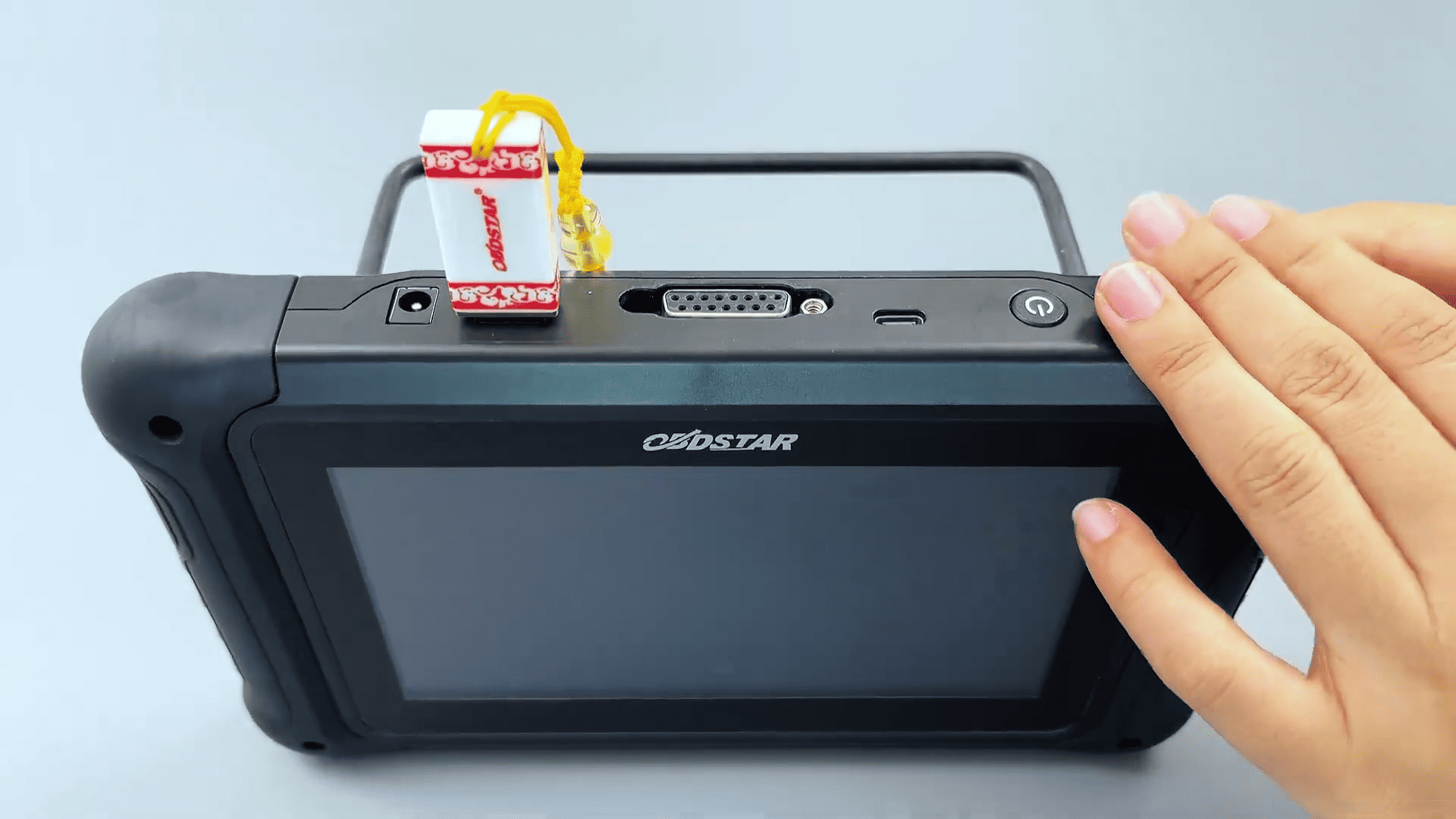
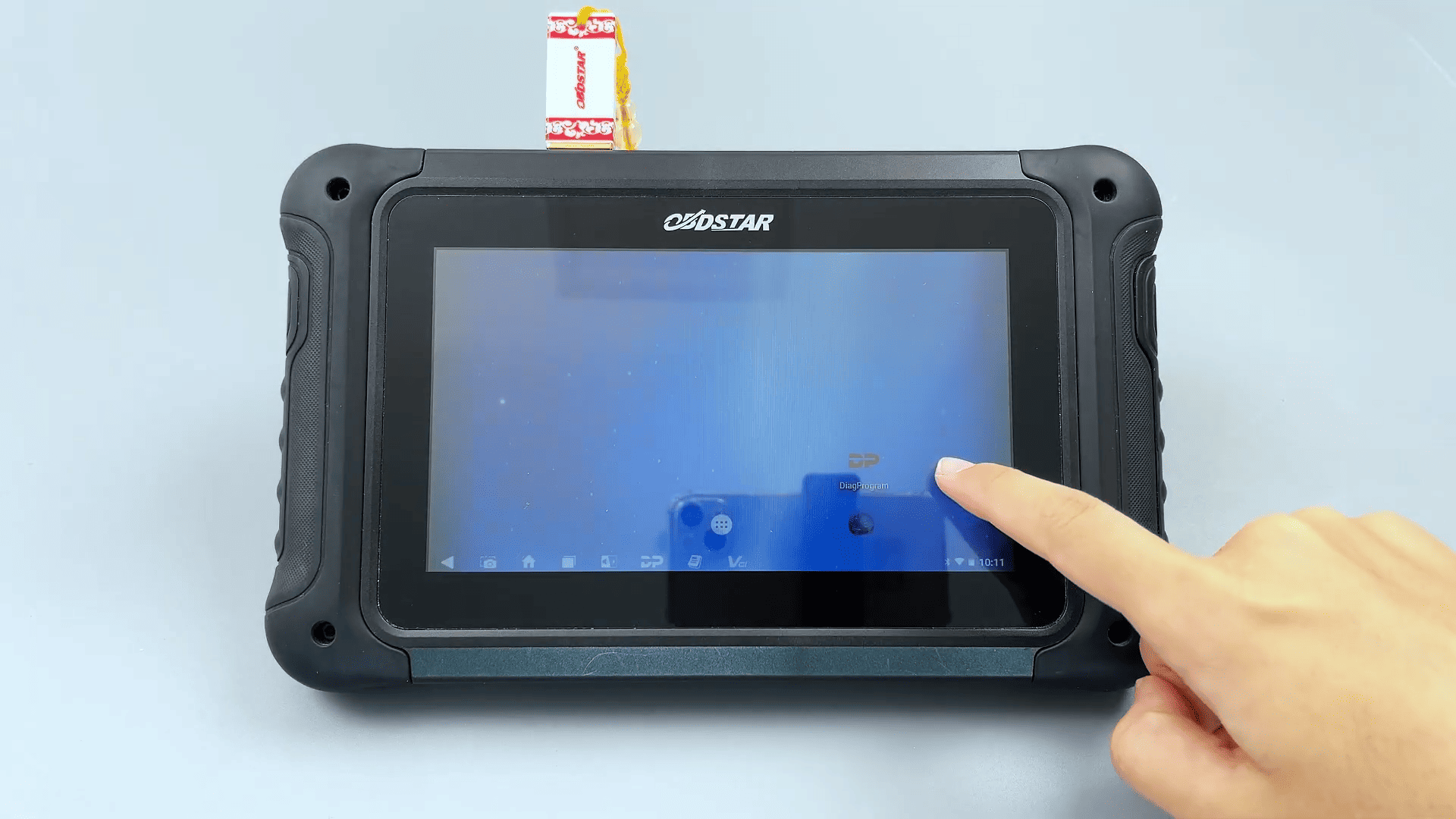
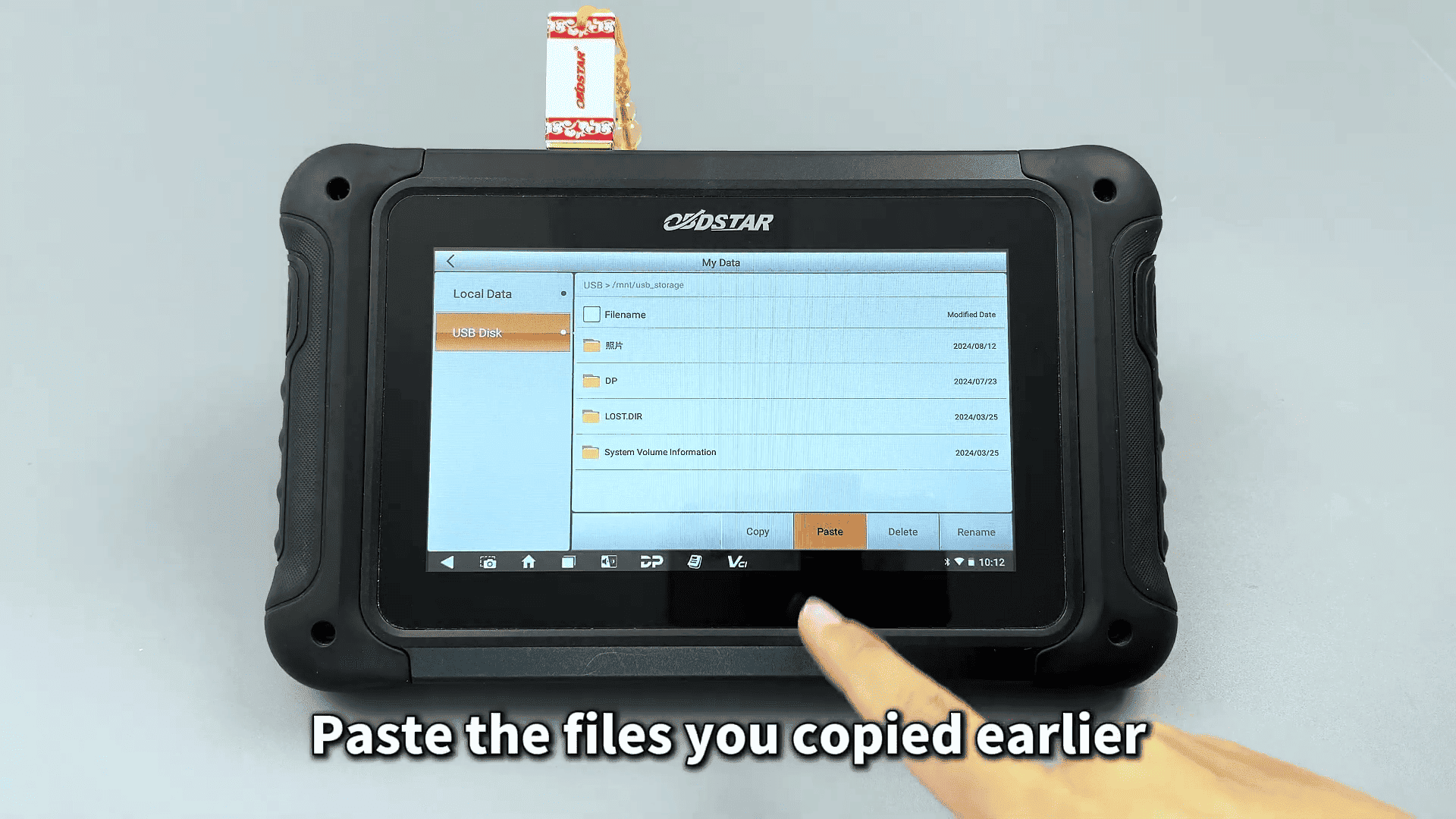
Insert a USB disk into the device and go to DP → Data Management → My Data. Select the files, tap Copy, choose the USB disk, and paste the files. This is the quickest offline backup method.
Method 2: Type-C Cable to Computer
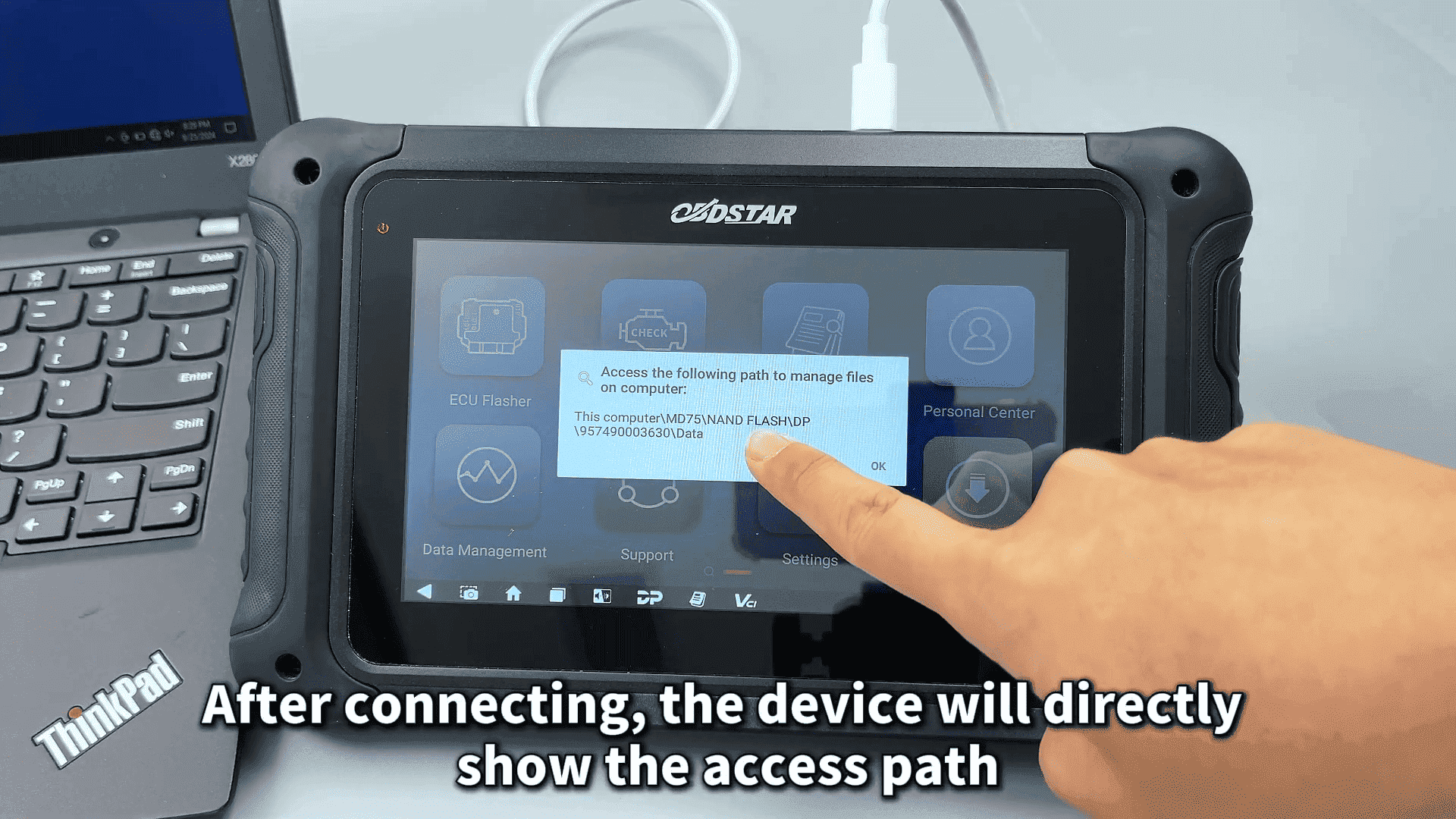
Connect the DC706 to your PC using a Type-C cable. Access the device storage through the displayed path:
This PC → MD75 → NAND FLASH → DP → Serial Number → DATA.
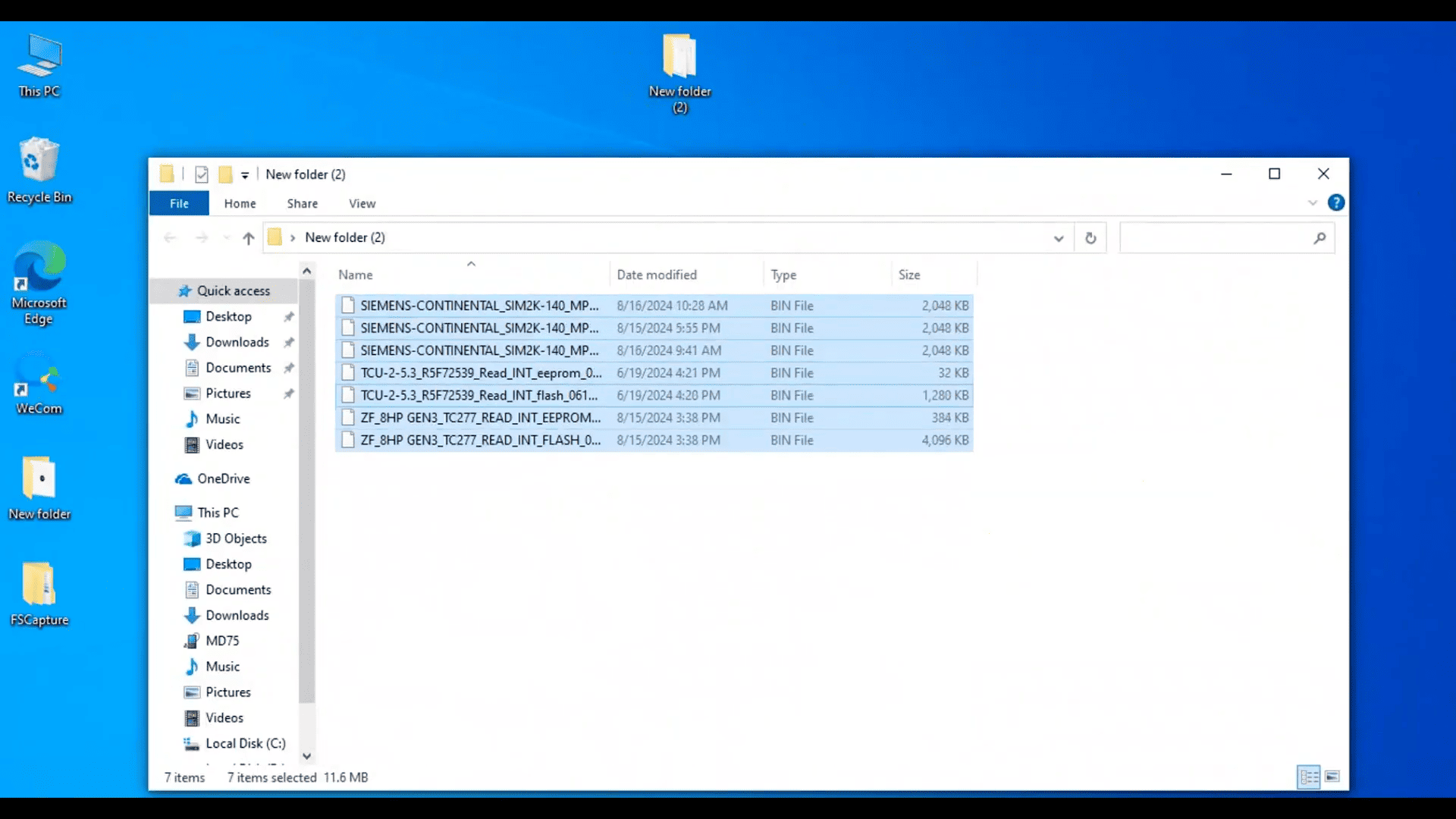
Copy the required files to your computer.
Method 3: Wireless Transfer
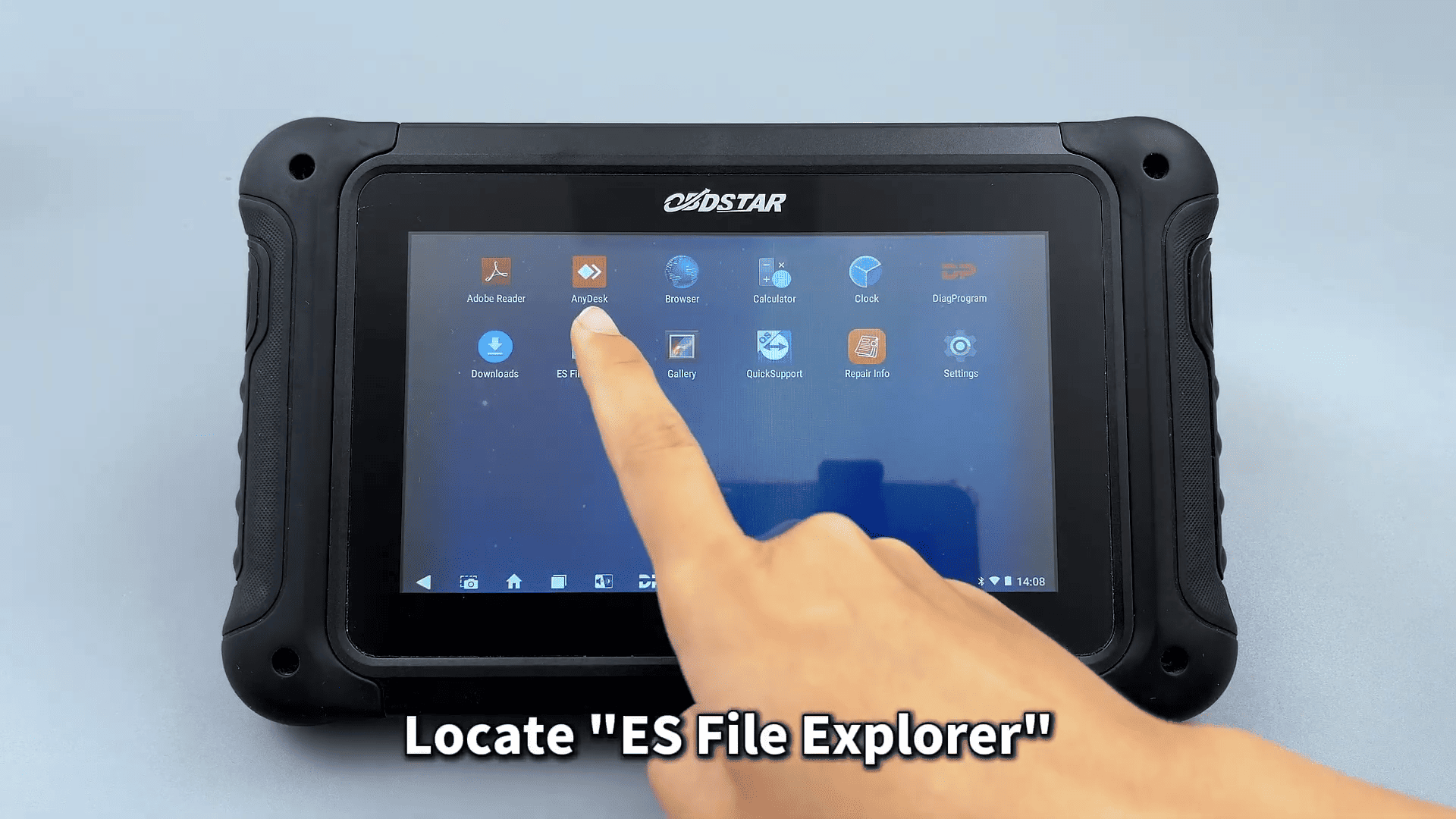
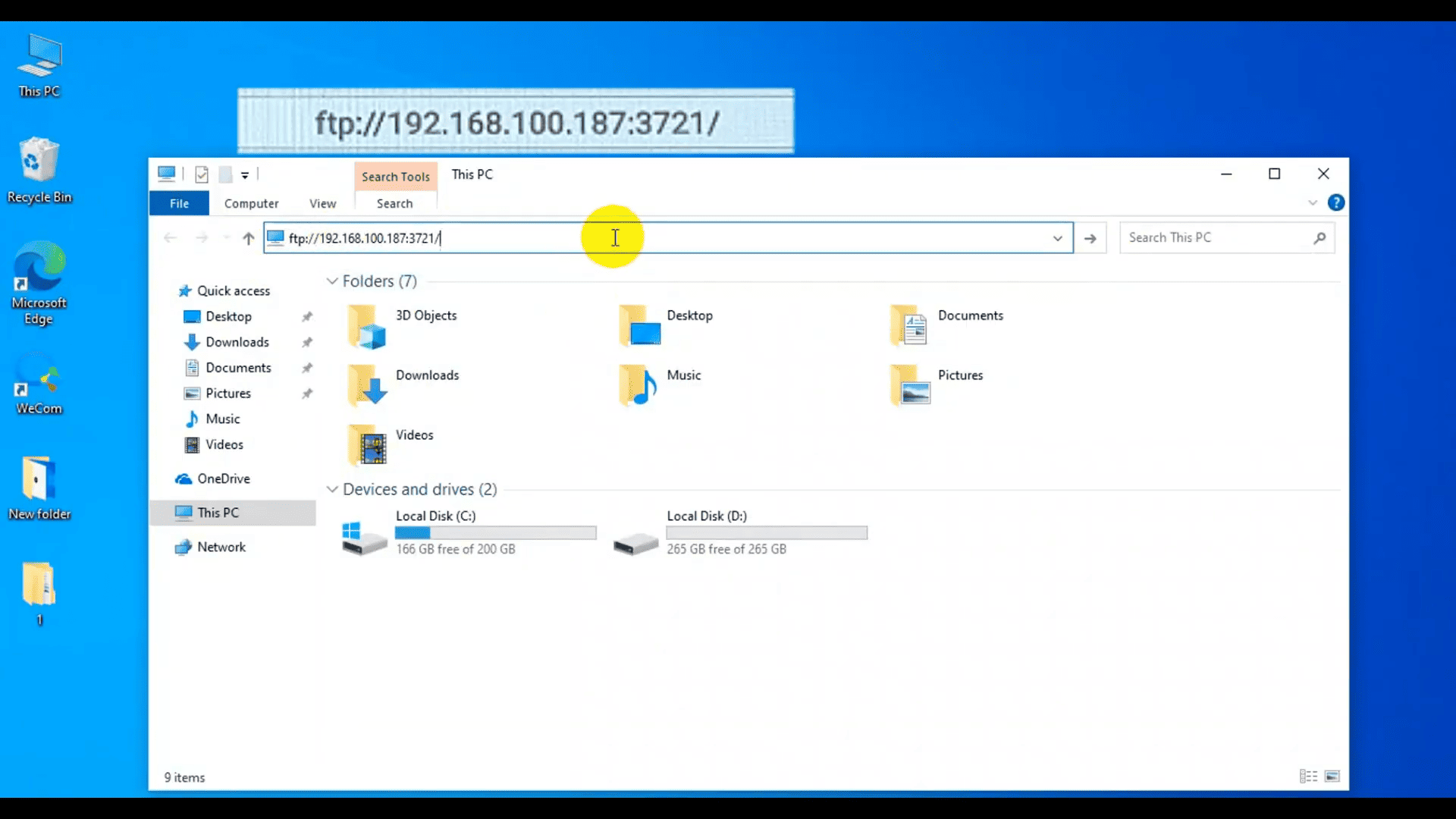
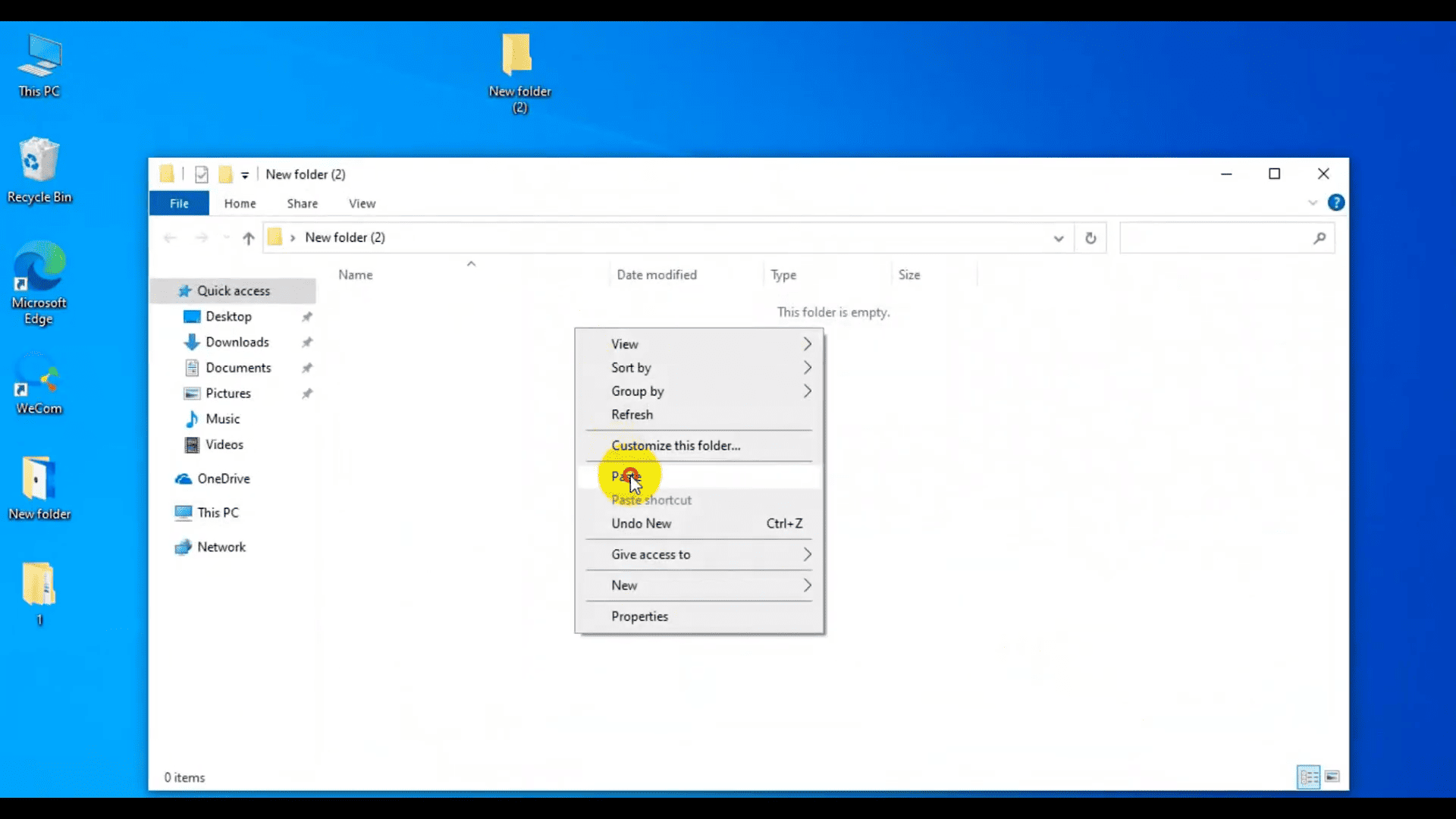
Ensure both the device and computer are on the same network. Open ES File Explorer → Remote Manager, turn it on, and enter the server address on your PC. Navigate to the Data folder and transfer the files wirelessly.
These three methods make data export on the OBDSTAR DC706 safe, fast, and convenient for daily workshop use.